
The Pessimist's Optimistic Guide to Scareware, or:
Two AIs
Walk into a Scareware Page
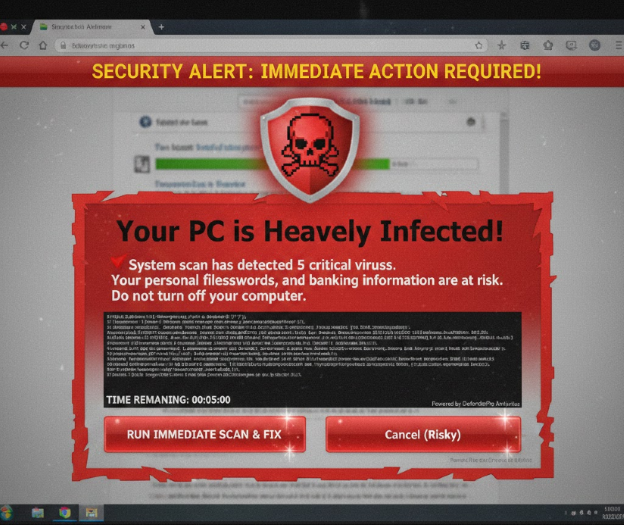
A Fake Fake Virus Alert, Courtesy of
Google Gemini AI
Table of Contents:
Introduction: The methodology to my madness
1. What is scareware?
2. Where does scareware come from?
3. Defending Against Scareware.
4. Why not just run antivirus software?
Conclusion
Introduction: The methodology to my madness
Once upon a time, way back when, say 5 years ago or so, what is today called "Scareware" was then most commonly known as a "Fake Virus Alert." Nevertheless, whatever it is now called, these bogus alerts have become quite pervasive. I am contacted on average 3 times a week by people who have been victimized by these false alerts. And, honestly, without seeing the computer and understanding the sequence of events that caused the fake alert, any advice that I can offer whether by text, phone, or email is my best guess. My assumption is that the fake alert is a symptom of an infection, but I also know that may not always be true.
So, I decided to put my own conventional wisdom about fake alerts to the test using Artificial Intelligence. Both Microsoft Copilot and Google Gemini were each used in this research. I would copy and paste one AI's response that seemed to differ from the other AI in search of consensus. In some ways the responses from the two AIs were similar. But, in other ways, one AI seemed to contradict the other with a "yeah, but..." type of response.
What follows is a synthesis of what came out of those sessions. Or, as the Copilot AI joked at the end of the session, "Two AIs Walk into a Scareware Page." A machine with its own sense of humor.
The reason for now calling these screens "scareware" is that they are meant to cause some degree of panic in its victim. It is in that moment of panic that users might be tempted to respond the attack. In many cases, Scareware is the conduit to an attack, and not the attack itself. But that is not always the case. Crowdstrike offers us a clear and complete definition of Scareware.
Scareware is a type of malware attack that claims to have
detected a virus or other issue on a device and directs the user to
download or buy malicious software to resolve the problem. Generally
speaking, scareware is the gateway to a more intricate cyberattack and
not an attack in and of itself.
Scareware is often part of a
multi-prong attack which incorporates social engineering techniques and
spoofing to heighten the sense of urgency and drive the desired
behavior. Scareware attacks, like many forms of malware attacks, are
especially troublesome in that the scammer may gain access to the user’s
account information or credit card details, which can put the user at
risk of identity theft or other forms of fraud.
2. Where does scareware come from?
From where the scareware originated is the most salient question to answer in order to defend against it. Scareware may initiate from an email; or from within Windows Notifications; but most commonly scareware presents itself as a popup webpage.
When a user receives any kind of email that has in its subject line anything that rings like a security alert that is a scareware threat. Defending against that is simple. Don't open up the email. Just delete the email. No antivirus company is remotely scanning your system.
A note from the field here. A week ago I was working with a client on a networking issue. While I was there the client showed me an email that purported to come from McAfee. The email stated that "27 viruses" were detected on the client's computer. I was able to access the email headers which is the metadata behind the email. The email originated from some guy who owned a design business. That poor fellow was infected, but not my client.
The most pernicious form of scareware is that which presents itself from with Windows Notifications. Windows Notifications are small popups that appear in the lower right hand part of the Windows screen. In each instance of this type of attack that I have encountered, this type of scareware attack was, in fact, the result of malware having infected the computer.
The most common type of scareware attack appears as a popup that overlays every other element on the screen. The mere fact that the popup is present does not necessarily mean the computer is infected. The most optimistic view of these popups is that the popups are the result of "malvertising". Crowdstrike defines malvertising thusly:
Malvertising — or malicious advertising — is a relatively new cyberattack technique that injects malicious code within digital ads. Difficult to detect by both internet users and publishers, these infected ads are usually served to consumers through legitimate advertising networks. Because ads are displayed to all website visitors, virtually every page viewer is at risk of infection.
That said, how one interacts with the popup will determine if the popup results in an infection.
3. Defending Against Scareware.
I repeat. If you see an email in your Inbox wherein the subject line says anything about "Security Alert," simply delete the email without opening up the email. Please, just believe that that email is spam.
My field experience is that when the scareware comes through
Windows Notifications, it very likely
that the computer is infected.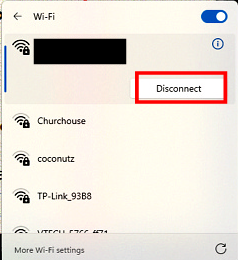 Before you proceed here, close and save any open files. I also recommend
that you back up all your files to an external drive. What follows
applies to both scareware Windows Notifications and to scareware
webpages.
Before you proceed here, close and save any open files. I also recommend
that you back up all your files to an external drive. What follows
applies to both scareware Windows Notifications and to scareware
webpages.
All sources say the first step to defend against scareware is to disconnect from the Internet. If you connect wirelessly, simply click the fan icon in the lower right part of the Windows screen where the clock is. You will see a blue button with your network name [redacted here] under the button. Then click the right pointing arrow. The list of available networks is displayed with your network name at the top of the list. Click the "Disconnect" button. The fan icon will change to a weird looking globe. To reconnect, simply reverse these steps. If you connect by a wired Ethernet connection, simply unplug the cable. note: On January 14, 2024, a Dispatch was posted with in-depth instructions that offers detailed instructions on how to disconnect from a network.
Next, shut down the computer. When a full shutdown of the computer is performed, all processes are stopped. Everything in memory is gone. Any data not saved to disk is also gone. If the scareware simply exists in memory, it too should be gone. If, however, when you restart and/or reconnect to the network, the scareware is still present, then that is a clear indication that the computer is infected.
Things get more complicated, however, whenever the scareware is displayed from a popup that appears seemingly out of nowhere. The popup may take up only a portion of the screen, or may take up the entire screen. Its origin may be malvertising. Or, it might have come from a rogue server. The popup may be just the one screen. Or, the popup may be more than one screen, each layered one over the other. The trick here is to get the popup(s) off the screen without clicking on the screen.
The popup itself is a webpage. And that popup has taken over your browser. By clicking anywhere on the popup screen, a malicious payload could be delivered. Malicious scripts can be hidden within one of those scareware pages.
One possibility here is that the scareware scans the system for any
unpatched vulnerabilities. If such a vulnerability is found, the
scareware might start a silent download, and thus exploit that
vulnerability. The close "X" or
cancel button could actually act as a trigger that when clicked begins
to download malware. That is called "click-jacking,"
where an invisible "malicious" layer is placed over the entire webpage.
In a
click-jacking attack where ever you click on the scareware screen begins
a
malicious download. As the Google Gemini AI put it, "By the
time you’ve finished reading the "Your PC is Infected"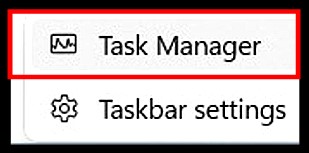 warning, the
actual infection is already running."
warning, the
actual infection is already running."
So, rather than click on the Close X or the cancel button, use Task Manager to close the popup screen without ever touching the screen itself. To call up Task Manager, simply right click on a blank spot on the taskbar. Two options will be presented as shown at the right here. Click on the option at the top, Task Manager.
Before you proceed, save any files on which you may have been working. I also recommend backing up your files to an external drive.
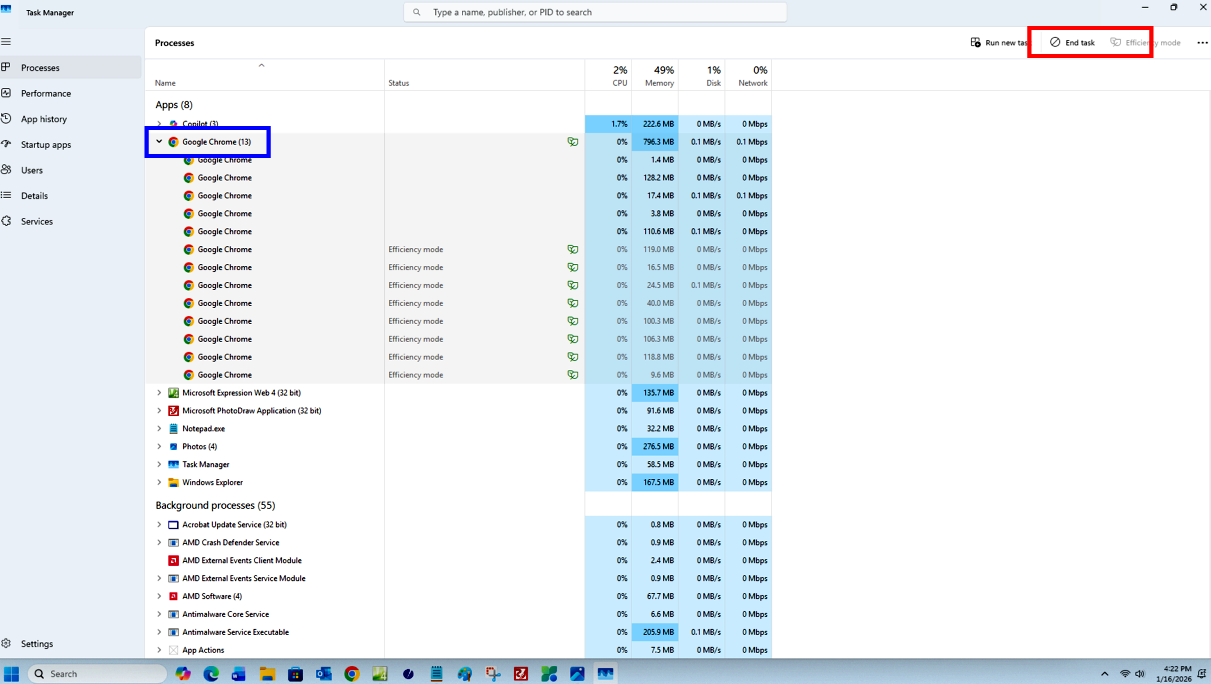
Task Manager opens to the Processes tab. At the top of the list of processes, will be those non-system applications that are running: i.e. your apps. It is likely that at any point in time more than one instance of a browser is running depending on how many webpages are open at the time. For instance, you might see both Chrome, Edge, or any other browser apps that are open. There is, however, no way to tell which of these browser sessions is the actual scareware screen. Therefore, please understand that when you close the browser using Task Manager all the browser session will close, and any data not saved to disk will be gone along with the scareware. To close open browser sessions, click one time to select that browser that appears at the top of the list of the open browser sessions you want to close. Then, click "End Task". The End Task button is located in the top right corner of the Task Manager screen. All instances of that open browser will be gone.
Assuming that all data files are saved and then backed up to an external drive, power down the computer. When the computer starts back up, reconnect to the network by repeating the steps above. After you shutdown and reboot, and then reconnect to the network, if everything is OK, you can use the browser History list to reload any legitimate webpages that were lost when Task Manager forced closed them. If the scareware returns, then most likely the PC is infected. If the scareware does not return, maybe you dodged a bullet.
4. Why not just run antivirus software?
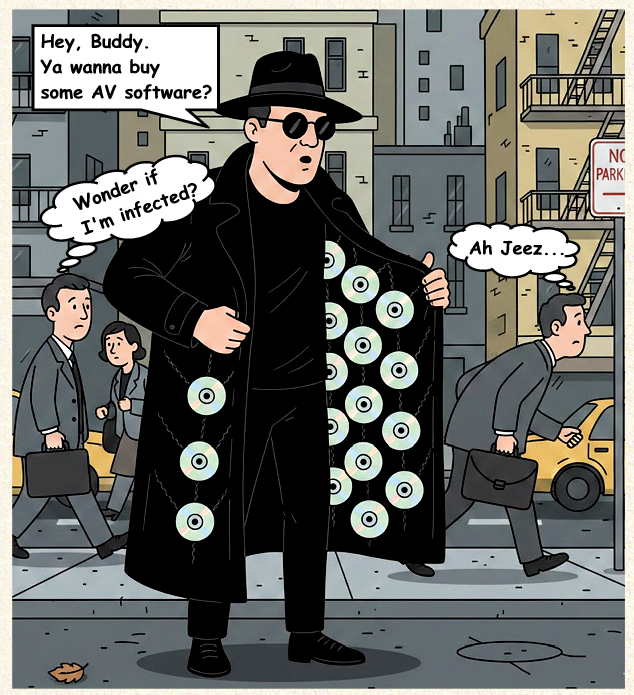
Antivirus software can certainly prove that a computer IS infected. On the other hand, AV software cannot prove definitely that the computer IS NOT infected. Running AV software most effectively is more complicated than simply clicking "RUN." AV software is really most effective when run with Windows in Safe Mode. When a Windows PC is in Safe Mode, only those most essential processes needed for Windows itself to run start up, and that excludes the malware itself. In Windows 11, a different and more complicated start up routine is required to enable Safe Mode and is beyond the scope of this tutorial.
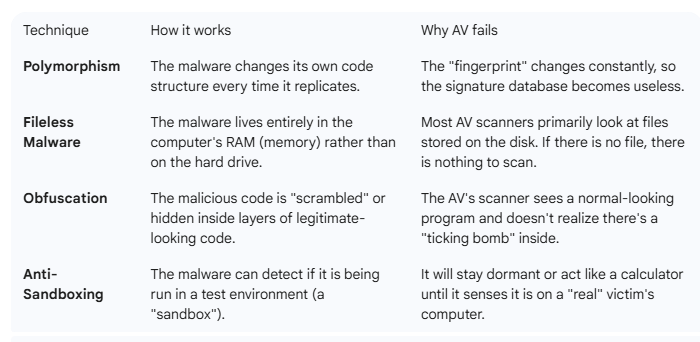
Furthermore, to be effective, AV software relies on what are known as "signature files." The signature file updates the AV software to detect known new strains of malware. If the signature file does not contain a fix for a newly discovered strain of malware, then that malware will continue to plague any system it had infected.
Also, modern malware often employs several evasion techniques to avoid detection. The chart below complied by the Google Gemini AI summarizes some of the more common evasion techniques.
Scareware has now become pervasive. Computer users are being bombarded by this dreck. Scareware does not, however, need to be so terrorizing to its victims. This article is intended to give to computer users the knowledge to empower themselves. The best antivirus is that which is between your ears.
The take away from this article is that whatever you see on the scareware screen is not what is actually happening. As Copilot put it, the steps outlined here are meant to encourage readers to "Don’t trust the screen. Trust the system."
And never forget this very old maxim that dates back to 16th
England:
To be forewarned is to be
forearmed.
Gerald Reiff
| Back to Top | ← previous post | next post → |
| If you find this article of value, please help keep the blog going by making a contribution at GoFundMe or Paypal | ||